A Comprehensive Guide to Using the Remove APT Command-Line Tool

There are many tools to interact with the package management system of Ubuntu, ranging from a graphical interface to a simple command-line interface which can be easily managed and automated by the system administrator. To run the various commands, access the Ubuntu server by using SSH.
The apt command is a strong command-line tool that functions with the Advance Packaging Tool (APT) of Ubuntu.
-
- Using the apt command to manage Ubuntu packages
- How to get the list of installed packages?
- Installing Multiple Applications
- Upgrading packages
- Viewing Package information
- Uninstall the program using apt remove
- Uninstall the Unused Packages Using a PPA
- Uninstall software by using apt purge Command
- How to Remove apt files and configuration
- Dealing with configuration files after specified package removal
- Apt remove: Uninstall apt Packages in Ubuntu
- Find Installed Software
This command line tool allows to installation and upgrade of the new and existing package file, update the index of the list and upgrade the whole Ubuntu system. You can also remove downloaded archive files and aptitude cache by using the following command if you have less space left in your system.
sudo apt-get clean

Using the apt command to manage Ubuntu packages
Install Ubuntu Package entirely by running the apt command when it is available directly in default repositories. You can also remove any package name.
Sudo privileges are required to install new packages on the system. However, Managing Packages with Apt furnishes all the necessary utilities for managing packages.
How to get the list of installed packages?
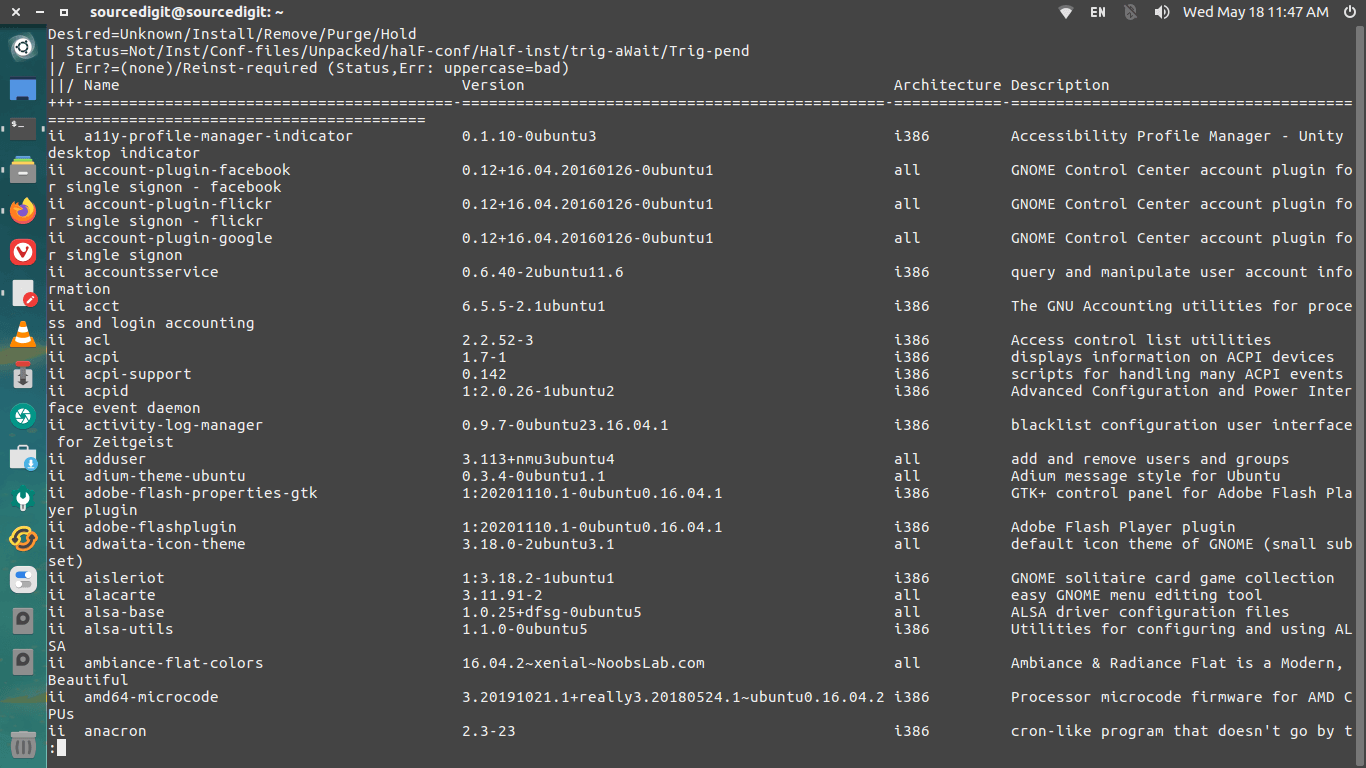
If a user needs the list of desired packages installed on the Ubuntu system, the following commands are required if the user uses the apt tool on Ubuntu 14.04 or above.
Enter the following command, and it will show the list of installed names.
apt list
In the old versions of Ubuntu, perform the following command in the terminal.
dpkg –get-selections | grep -v deinstall
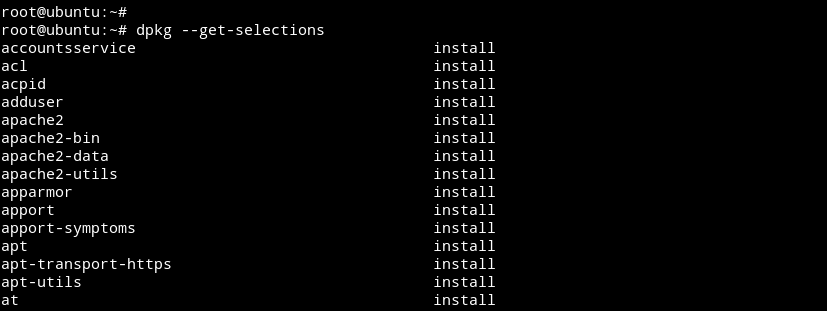
To locate your package's exact name the following:
dpkg --list | grep <package-name>
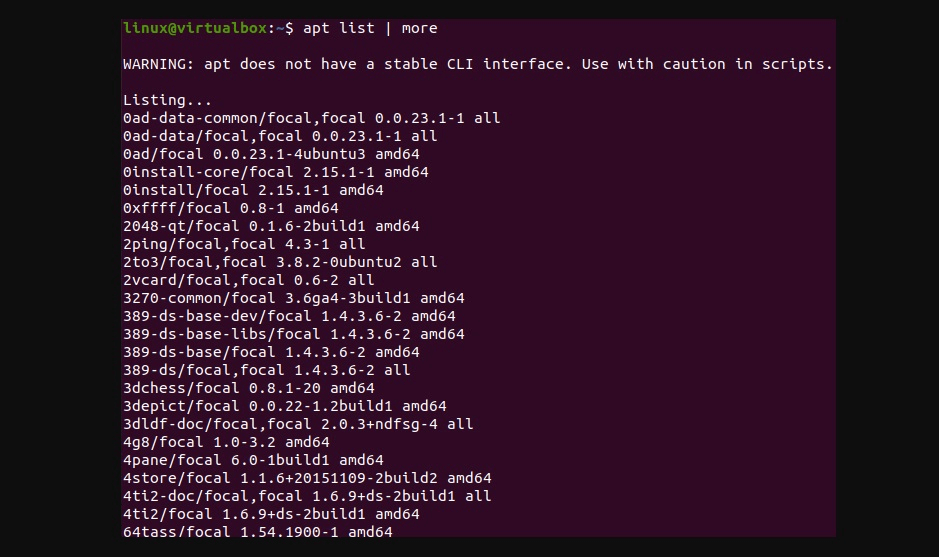
To acquire the list of specific installed packages, enter the command in the terminal.
dpkg –get-selection | grep postgres
Type the command
dpkg --get-selections | grep -v deinstall > ~/Desktop/packages
Or type the single command
dpkg -l
Sudo apt purge or any other variants are not necessary to get the list of installed multiple packages.
Installing Multiple Applications
If you installed applications more than once on Ubuntu, you need to update the list from configured repositories by typing the command in the terminal.
sudo apt-get update
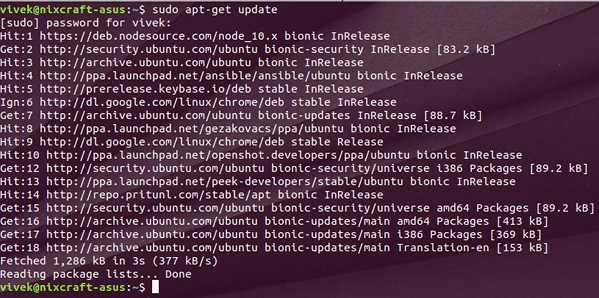
Then install the packages by typing the package name
sudo apt-get install < name_of_package_1> <name_of_package_2>
Verify the installation process by typing the command
dpkg -l <name_of_package_1>
Other packages can be installed by using the Ubuntu software center.
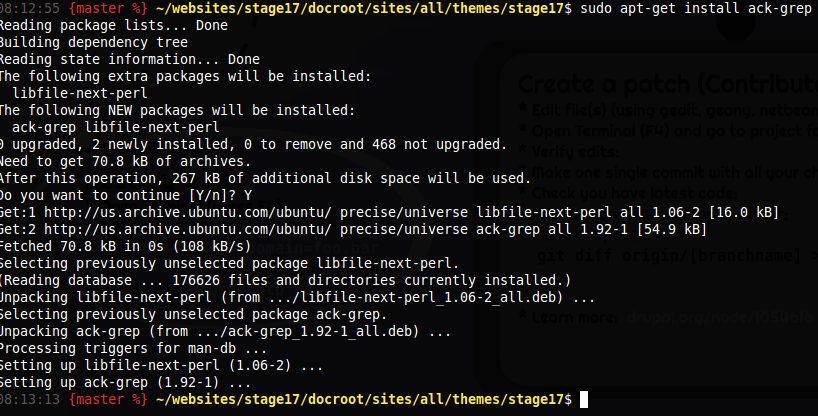
Upgrading packages
To upgrade packages using apt in the ubuntu package management system, type the following command if the user wants to update a package index.
sudo apt-get update
To upgrade packages, type the command
< sudo apt-get upgrade
To update a specific package, type
apt-get install <package_name>
If the user wishes to upgrade all the packages, type
sudo apt-get dist-upgrade
In the terminal, to install all the latest versions of all the installed programs, type
sudo apt-get full-upgrade
Viewing Package information
Type the command in the terminal < apt-cache show PACKAGE > to obtain information regarding a package before installing with the apt install and to check the information related to the package after the installation process is completed.
Use the command < dpkg -L package_name > to see the information of the files it contains.
Uninstall the program using apt remove
There are several easy-to-use options available to remove the program from Ubuntu by using sudo apt remove from the terminal. There is a difference between sudo apt autoremove and sudo apt purge.
The removing steps include opening the terminal and typing
sudo apt remove <package_name>
Hitting the “enter” button.
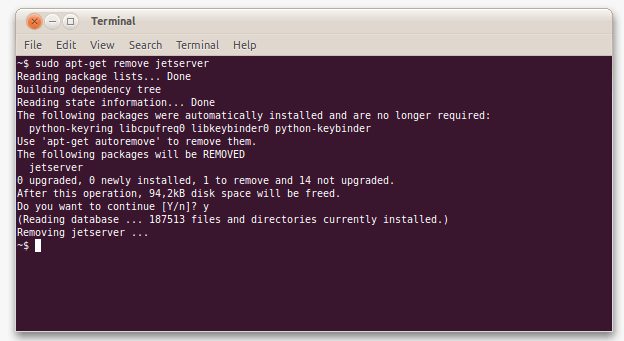
If prompted, type the password and confirm the uninstall process by hitting “Y”. Now apt will start uninstalling software and the specified packages.
Wait for the command removes process to be finished and the program will be uninstalled using sudo apt remove.
Uninstall the Unused Packages Using a PPA
To list all the installed PPAs, open the terminal and type the command
sudo apt-add-repository –list
Copy the PPA you want to uninstall software and type the command to start the uninstallation process of the PPA
sudo apt-add-repository -r [PPA]
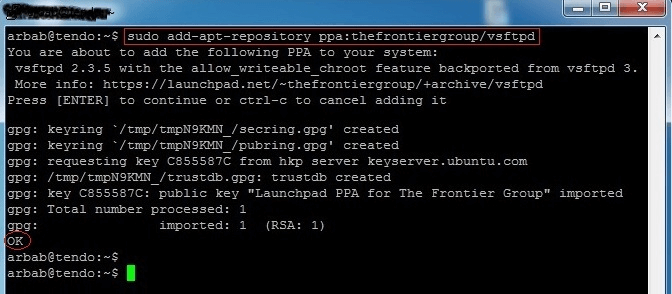
To update the list of packages, type the command
sudo apt-get update
Type the following command for removing packages linked with the PPA uninstalled recently
sudo apt remove [package]
Uninstall software by using apt purge Command
This command is employed to entirely remove a package from your Ubuntu Linux system.
To enter the command purge, preferably, open a terminal window. Type the below command along with the package name you desire to remove.
sudo apt purge
For instance, if you desire to remove the “VLC media player”, you will type the command
sudo apt-get purge vlc
The apt will explore your system for the package and remind you to verify the removal after you press enter button from the keyboard.
The package will be removed, but in some possibilities, the apt purge may not clear all of the files that are associated with and produced by the package.
In this case, the user can manually remove those files using the rm command in a terminal window. Choosing an apt-get purge command is the most effortless method to altogether remove. It does not remove the package only but even all of its configuration files, associated files, and remaining dependencies.
How to Remove apt files and configuration
The rm command can be easily used to remove a file or other user settings.
Let's take an example of removing a file with the name “myfile.txt”. Type the below command in the terminal.
rm myfile.txt
Use the command to remove a directory.
rmdir
For instance, to remove mydir named directory, type the command in the terminal and press enter button.
rmdir mydir
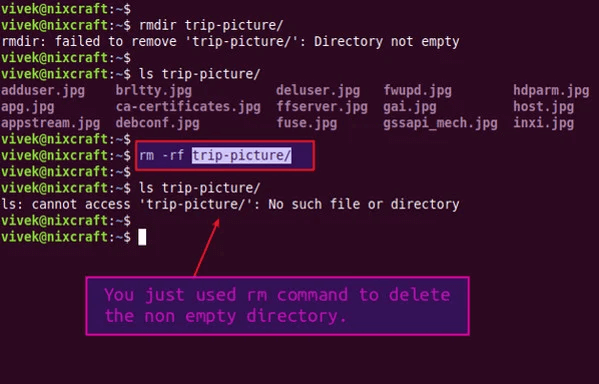
For the removal of the configuration file, dpkg command will be used.
For example, type < dpkg –purge mypackage > for removing the configuration named mypackage.
Dealing with configuration files after specified package removal
In the ubuntu package manager, if you have removed a package in apt, the configuration file typically remains on the system. There are two ways to command remove configuration files, either manually or by using the management tool. Using the packing management tool included to remove the files by typing the following command.
sudo apt-get autoremove
All the associated files will be removed. The purge also removes configuration files outside the home directory.
Apt remove: Uninstall apt Packages in Ubuntu
Use the below command to remove the package in ubuntu.
sudo apt-get remove
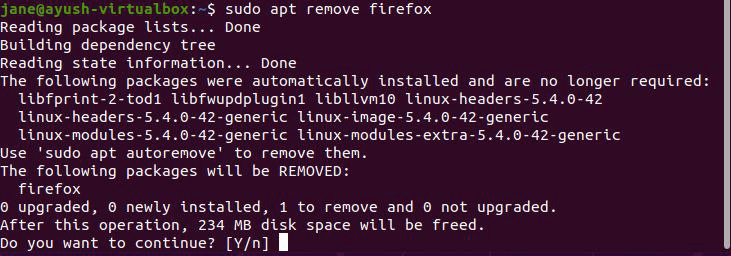
This command apt remove will clear all the dependencies along with the exact package that was installed with the package names as well as apt can also remove multiple packages by using different commands.
Find Installed Software
To search for installed ones in Ubuntu, you can use the command.
dpkg
It will show the list of installed packages and their versions. Command apt-list can be used to see the list of installed and uninstalled software.
Frequently Asked Questions
What is the apt command in Ubuntu?
The apt command is a command-line tool used to manage software packages on Ubuntu systems. It allows users to search for, install, remove, and update software packages.
How do I update the package list with apt?
To update the package list with apt, run the following command in the terminal: sudo apt update. This will refresh the list of available packages from the Ubuntu repositories.
How do I search for packages with apt?
To search for packages with apt, run the following command in the terminal: apt search <package-name>. Replace <package-name> with the name of the package you want to search for.
How do I install a package with apt?
To install a package with apt, run the following command in the terminal: sudo apt install <package-name>. Replace <package-name> with the name of the package you want to install.
How do I remove a package with apt?
To remove a package with apt, run the following command in the terminal: sudo apt remove <package-name>. Replace <package-name> with the name of the package you want to remove.
How do I upgrade all packages with apt?
To upgrade all packages with apt, run the following commands in the terminal:
-
sudo apt update (to update the package list)
-
sudo apt upgrade (to upgrade all packages)
This will upgrade all installed packages to their latest available versions.

Bilal Mohammed is a SOC analyst and cybersecurity expert who is passionate about making the internet safer. He has expertise in penetration testing, networking, network security, web development, and security operations center (SOC) services. In his spare time, he looks for security and design vulnerabilities to protect against attacks from hackers.

.png)
![5 Commands to Check Memory Usage in Linux [The Easy Way]](/static_content/vpsserver_com_frontend/img/linux-memory-usage.png)