Every system administrator faces this challenge at some point: how do you safely transfer files between Linux servers without exposing sensitive data? Whether you're migrating databases, deploying application code, or backing up critical configurations, you need a method that's both secure and reliable. That's where SCP (Secure Copy Protocol) comes in—a powerful command-line tool that encrypts your data during transfer, ensuring your files reach their destination safely.
SCP is a lightweight command line tool that authorizes you to securely copy a file or a directory from a local system to a remote system or from a remote system to a local system. You can also copy files between two remote systems from your local system.
To execute the SCP command, the user must first provide the remote host's password to establish a secure connection. This blog will show you a way to simplify this step by passing passwords directly to the SCP command in Linux.When you move beyond simple user management in Linux, you'll start tackling bigger projects, like connecting your desktop to remote servers or handling server-to-server capacity expansion. Beyond the basic Linux commands, these advanced goals are achieved using specific commands for directory and file transfers.
Basic requirements
Before beginning this guide, please ensure you have the following basic requirements set up:-
A server running Linux on our cloud platform
-
A root password configured on your server
Copy files using the command line to a remote server
The syntax to copy a file to a remote server or remote system from the local system is shown below:
scp filename user@remotehost:/directory/path
For example, copy a file name file1.txt to a remote system from a local system containing the IP address "192.168.1.100" inside /mnt directory. Run scp through the following command:
scp file1.txt root@192.168.1.100:/mnt/
The basic syntax to copy a file to a local system from a remote host or remote system is displayed as follows:
scp user@remotehost:/file/path local/path
For instance, to copy a file name "file1.txt" to the local system inside /opt directory from the remote system containing an IP address 192.168.1.100, run the following command:
scp root@192.168.1.100:/mnt/file1.txt /opt/
You will be asked to enter a remote password as shown below:
root@192.168.1.100 password:
Syntax
The syntax for the SCP command is shown below:
scp [options] username1@source_host:directory1/filename1
username2@destination_host:directory2/filename2
Specify the location of the source file, including:
-
Username1: name of the account on the host computer
-
Source_host: the hostname of the computer
-
Directory1: name of the directory containing the source file
-
Filename1: the name of files 1
-
Filename2: the name of files 2
The user must include a space while typing the destination and source paths. Be careful while copying files with the same name on both hosts. Otherwise, you may overwrite the data you intend to secure.
Examples
For the following examples, let's say your username is "syna" and you are logged into your account on the computer
To copy a file called fortune.txt from your home directory to a directory called "star" in your account on the computer "livestar.com", type:
scp ~/fortune.txt syna@livestar.com:~/star
You will be asked to enter your password on the destination system. The command will not work unless you enter the correct password.
Use scp with the -r command to copy a directory and all its connected files. These guide scp to recursively copy the source directory and its contents.
To copy the directory from your account to the other account, type:
scp -r syna@livestar.com:~/star~/star
You will be required to type your password. The command will not proceed if the password is incorrect.
Users can use wildcards to copy multiple files within a directory, for example, “or, ?”. However, using wildcards for copying more than two files from a remote system, you must type quotes at the beginning and end of the file. It is compulsory, as the Unix shell script expands the unquoted wildcards, not the SCP command.
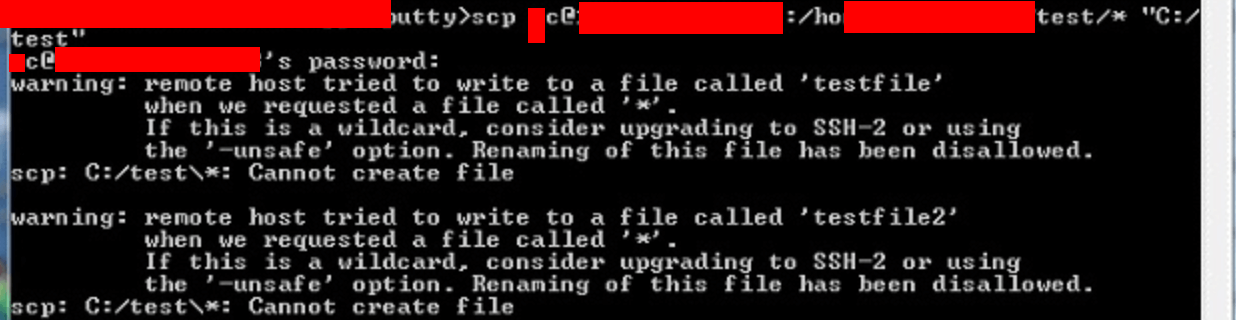
To copy all the ‘.txt’ files from the directory from your account to the other directory, type:
scp syna@livestar.com:"star/.txt" ~/star/
You will be asked to enter the password on your sources system. The command will not proceed if the password is incorrect.
Assume that the user “syna” is logged in to another computer, not livestar.com or another account. To copy luke.txt from the home directory to your “star” directory on livestar.com, type:
scp syna@empire.gov:~/luke.txt syna@livestar.com:~/star
You will be asked to enter two passwords. The command will not proceed if the passwords are entered incorrectly.
-
One for the source system
-
One for the destination server
Securely transfer files using SCP command

SCP usage enforces strong encryption for the password, preventing it from being leaked or intercepted during the secure transfer of files and directories. The traditional syntax for executing the command is:
$ scp [Username@SourceHost:]Path_to_File_to_Copy [Username@DestinationHost:]Path_to_Destination_of_Copied_File
For instance, It will successfully copy a file to one server or remote servers from a Linux desktop environment in the following manner:
$ scp linuxshelltips.txt ubuntu@18.118.208.xx:/home/ubuntu/
Using the SCP command as shown will result in the system requesting the SCP password through the following entry prompt:
ubuntu@18.118.208.xx's password:
The file transfer will only proceed once the Linux user successfully completes the SCP with password authentication for the target destination.
What if you could use a single, one-line command that automatically handles the password, allowing your files and directories to be copied instantly without waiting for a prompt?
Add SSH password prompt to SCPCommand in Linux
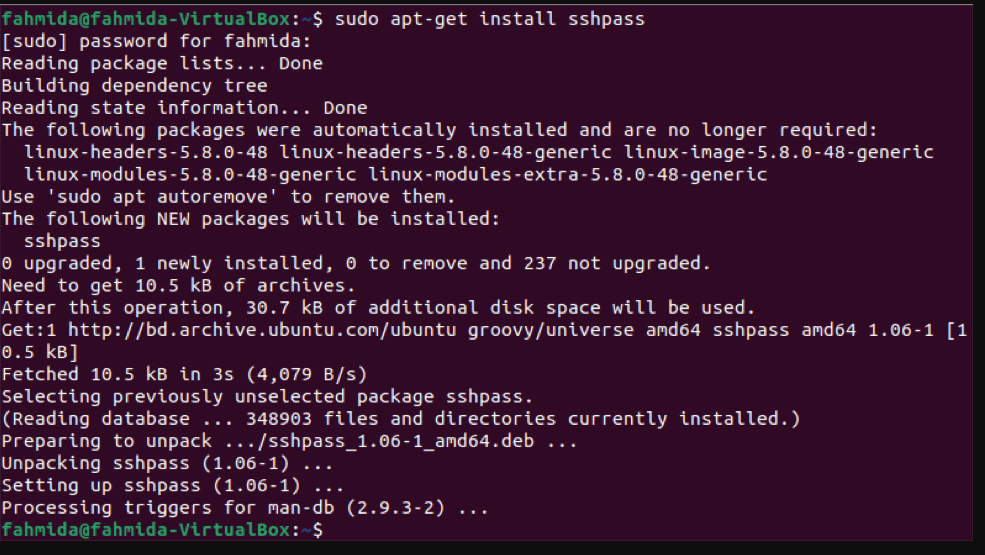
To address the need for automated file transfer, we will use the scp command alongside the sshpass utility. You can install sshpass—a simple, lightweight command-line tool—to feed passwords directly to the prompt. This is especially useful in shell scripts when performing backups via cron jobs.
The standard scp command alone requires you to manually enter the login password, which prevents one-line command usage and full automation. When sshpass is executed alongside scp, it bypasses this password prompt, allowing the user to copy files or directories without interruption.
Alongside SCP, when SSHPASS is executed, it rejects the requirement for a password prompt before the user copies a file or directory.
$ sudo apt-get install sshpass [On Debian, Ubuntu and Mint]
$ sudo yum install sshpass [On RHEL/CentOS/Fedora and Rocky Linux/AlmaLinux]
$ sudo emerge -a sys-apps/sshpass [On Gentoo Linux]
$ sudo pacman -S sshpass [On Arch Linux]
$ sudo zypper install sshpass [On OpenSUSE]
How to pass passwords with SCP command
The basic syntax to pass a password with the SCP command is illustrated below:
sshpass -p "remote-user-password" scp filename user@remotehost:/dir/path/
For instance, if you desire to copy a file name file1.txt to the remote server with IP 192.168.1.100, use the following command in Linux:
sshpass -p "password" scp file1.txt root@192.168.1.100:/mnt/
As you witness in the following example, the sshpass + SCP command will allow you to copy files and directories from one system to another, employing a one-line command.
SSHPASS non-interactive password authentication use subject can be executed alongside SCP as illustrated by the following command syntax.
$ sshpass -p "REMOTE_USER_PASSWORD" scp UserName@Remote_Host:/DESTINATION_PATH_TO_COPIED_FILES
For example, if a user attempts to copy a file to a remote server using the following method:
$ sshpass -p "REMOTE_USER_PASSWORD" scp linuxshelltips_v2.txt ubuntu@18.118.208.79:/home/ubuntu/
In the above scenario, if the user wished to copy multiple files and directory files, he would use the -r alternative to recursively copy all the folders, sub-folders, and other files within the targeted directory.
Type the following command:
$ sshpass -p "REMOTE_USER_PASSWORD" scp -r Some_Directory/ ubuntu@18.118.208.79:/home/ubuntu/
As explained, SSHPASS + SCP commands will support Linux users to achieve a one-liner command for copying the system or user's password files & directories to the destination machine from the host machine.
The destination for the copied files and directories can be either a local Linux desktop environment or a remote Linux server. Combining the SSHPASS and SCP tools makes file copying quick, efficient, and effortless, as you no longer have to wait for a password prompt to execute your transfer steps.
However, it is best to avoid using SSHPASS on networks with many users, as a malicious user could potentially capture your remote password.
To get ssh password protection a password with file permission, the user needs to generate an ssh key like:
ssh-keygen -t rsa -C "your_email@youremail.com"
Then copy the content:
~/.ssh/id_rsa.pub
Lastly, add it to the remote machines
~/.ssh/authorized_keys
Make sure the remote machine has the permissions
-
0700 for ~./ssh folder
-
0600 for ~/.ssh/authorized_keys
Conclusion
In summary, combining sshpass with the SCP command successfully bypasses the interactive password prompt, making your server-to-server transfers instant and efficient. This technique is invaluable for any system administrator looking to automate backups or scheduled transfers. Always keep security in mind: use this method cautiously, and if possible, migrate to secure SSH keys for maximum protection against credential exposure.
.png)
Bruno Mirchevski is a seasoned hosting industry professional. With years of experience, Bruno is dedicated to helping individuals and businesses find the best web hosting solutions. As a hosting expert at HostAdvice, Bruno provides valuable insights and guidance to users seeking reliable hosting services.
Frequently Asked Questions
Why do I need to pass a password to the SCP command?
The SCP command securely copies files between a local and a remote system, but it requires authentication to establish a secure connection. You need to pass a password to the SCP command if you're connecting to a remote system that requires a password for authentication.
How do I pass a password to the SCP command?
Pass a password to the SCP command using the -r and -B options. For example, scp -r -B <password> /path/to/local/file user@remote:/path/to/destination/. Replace <password> with the password you want to use for authentication.
Is it secure to pass passwords to the SCP command?
Passing passwords to remote servers via the SCP command is not recommended, as malicious actors can intercept it. Instead, it would be best to use public key authentication or passwordless SSH to establish a secure connection between the local and remote systems.
What is public key authentication in SCP?
Public key authentication is a method that uses a public key and a private key to establish a secure connection between the local and remote systems. The public key is stored on the remote system, and the private key is stored on the local system. When you attempt to connect to the remote system, the SCP command uses the private key to authenticate you.
How do I set up public key authentication for SCP?
To set up public key authentication for SCP, you must generate a public/private key pair on your local system and copy the public key to the remote system. You can then use the private key to authenticate your SCP connections. There are many tutorials available online that provide detailed instructions on how to set up public key authentication for SCP.
What is passwordless SSH in SCP?
Passwordless SSH is a method of authentication that allows you to establish a secure connection between the local and remote systems without using a password. Instead, it relies on public key authentication to authenticate your SCP connections. This method is more secure than passing passwords or ssh keys to the SCP command.
How do I find files in Linux using the command line?
For those needing a review of basic Linux commands, here is a tutorial that will teach you how to find files in Linux using the command line. When you master this command line, you can find files in seconds.